Guides
How to store private photos and videos on iPhone with Vely
Follow the current Vely workflow to import photos and videos, choose what to do with originals, organize albums, and check your next steps.
- Photos and videos
- Importing
- Albums
Start with a few photos or a short video so you can work through the import and album controls before organizing a larger collection. This guide follows the current app; Vely is coming soon to the App Store.
Before you start
If you have not created your vault, complete Vely's setup first: draw and confirm your pattern, write down your recovery phrase, and complete the phrase check. Setup also offers optional Face ID and iCloud backup.
The recovery screen explains:
These 12 words are the only way to open your vault if you forget your pattern, and the only way to restore your iCloud backup on a new iPhone. Write them down and keep them somewhere safe and offline. We can't show them to you again. Your recovery phrase restores access to your encrypted data. It is not a backup of your files.
The free plan holds up to 100 items. Check your current usage in Settings before planning a large import.
Import photos and videos
- Open your vault and go to Home.
- Tap the Add to vault plus button, then Import from Photos.
- Choose the photos and videos you want in the photo picker and confirm your selection.
- Wait for the import to finish. Open an imported photo and play an imported video to check the result.
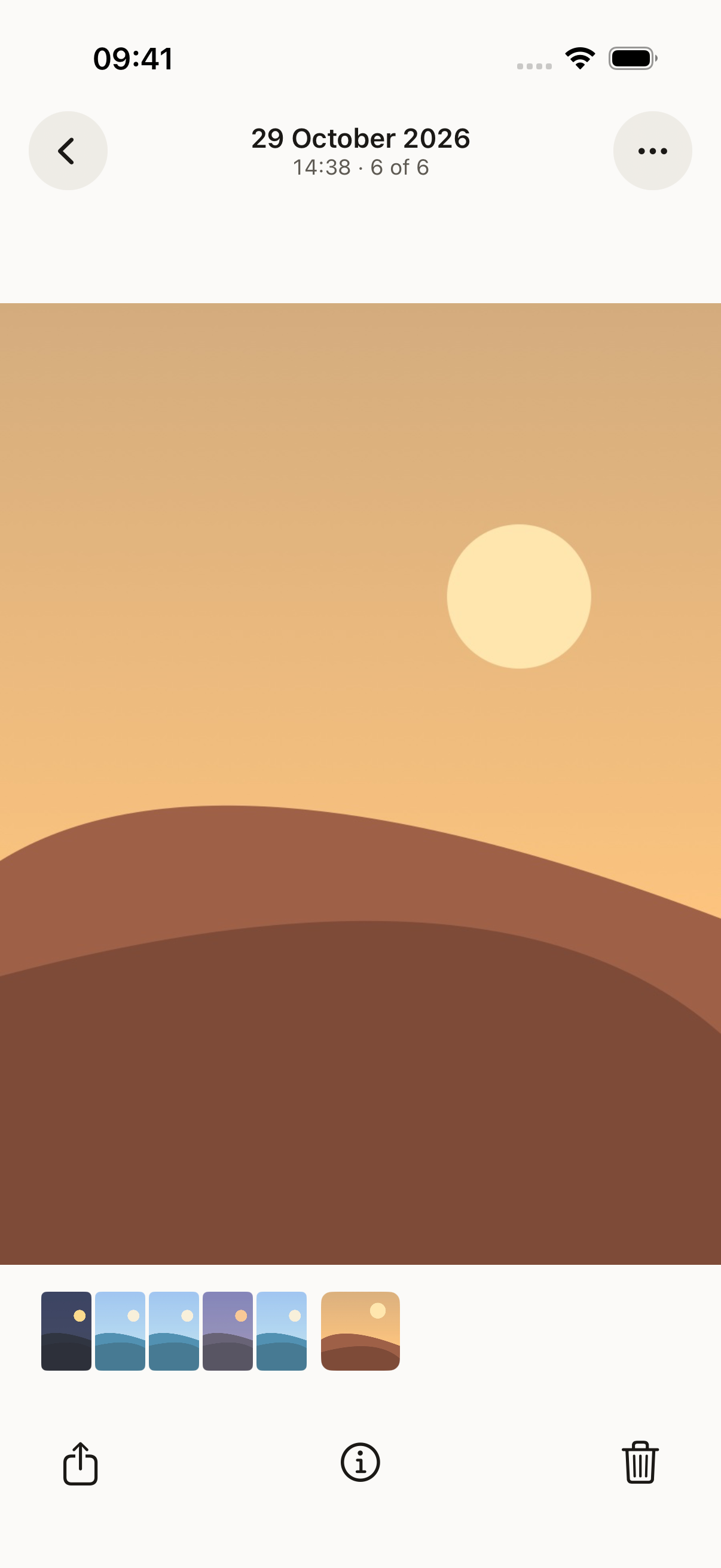
If Home reports imports that didn't finish, open that notice. Use Import Again for the affected photo or video and select it again in the picker.
For the underlying storage details, the approved explanation is:
Everything you add — documents, photos, videos, notes, scans, and the names of your files and folders — is encrypted on this iPhone before it is saved. Each file gets its own random 256-bit key and is encrypted with AES-256-GCM, using Apple's CryptoKit. Names, folders and notes are kept in a database encrypted with SQLCipher.
Choose what to do with the originals
After a successful import from Photos, Vely offers Delete Originals or Keep Originals. Read the prompt before choosing:
Delete the originals from Photos? They're now in your vault. Photos keeps deleted items in Recently Deleted for 30 days.
Choose Keep Originals if you want to review the import before making a deletion decision. If you choose Delete Originals, follow the iOS access and deletion prompts. Read any error message; if an original could not be deleted, review it in Photos yourself.
Include the originals and Photos' Recently Deleted folder in your review before lending someone your iPhone. Do not delete a copy you still need.
Organize an album
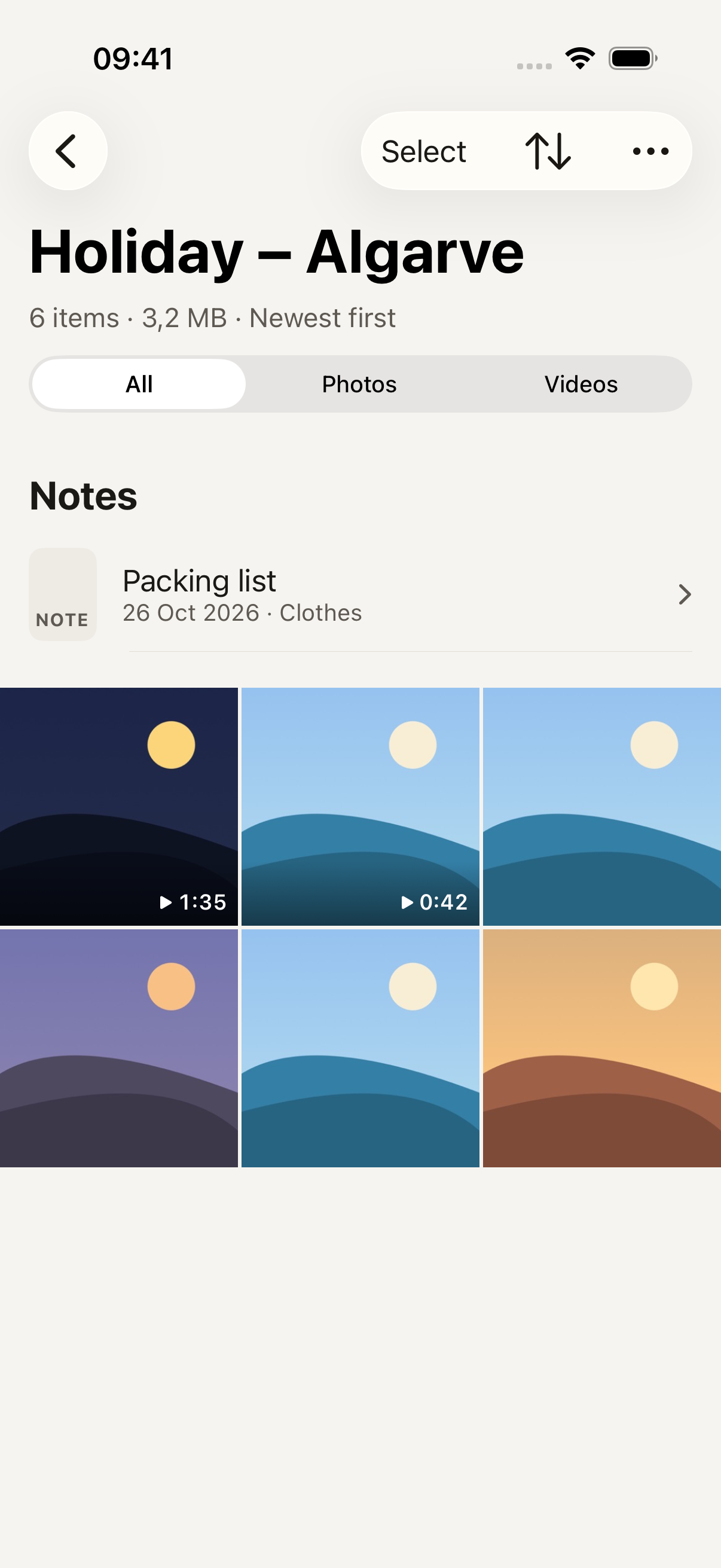
From Home's Add to vault menu, choose New album, enter a name, and tap Create. Open the album, use its More menu, and choose Import from Photos to import directly into it.
For photos or videos already in the browser, tap Select, select the items, then use Move. Tap the destination album in Move to. The browser's Photos and Videos filters help you review each kind of item separately.
Check backup and protection limits
Importing and arranging albums is one task; making a backup is another. Follow the photo and video backup guide to turn on the optional backup and check its date.
Before relying on the vault, read How your data is protected, including what this doesn't protect against:
- Someone who knows your pattern or watches you draw it. You can hide the pattern trail in Settings.
- Someone who has your iPhone while your vault is open.
- Screenshots or photos of your screen.
- Losing files that were never backed up.