Guides
How to lock private photos and videos on iPhone with Vely
How to lock private photos and videos on iPhone with Vely: set an unlock pattern, save your recovery phrase, unlock day to day and get back in.
- Locking
- Recovery phrase
- Getting started

This guide shows how to put personal photos and videos behind an unlock step with Vely. It covers setting your pattern, saving your recovery phrase, unlocking each day, locking again, and getting back in if you forget the pattern. Vely isn't on the App Store yet, so these steps describe how locking will work at launch.
What locking your photos with Vely means
Vely keeps photos, videos and documents in a vault on your iPhone. You open the vault by drawing a pattern on a grid. You also get a recovery phrase for the day you can't remember that pattern.
The approved explanation of the pattern reads:
Your pattern is never stored
When you draw your pattern, Vely turns it into a key using Argon2id, a deliberately slow function, combined with a secret that is kept in this iPhone's Keychain and never leaves it. The pattern itself is not saved anywhere, and it only works on this iPhone. You can open your vault with your pattern, your recovery phrase, or Face ID if you have turned it on.
A lock has limits too. They are quoted in full in What locking does and doesn't cover below, so read that section before you rely on the lock.
Before you start
A few minutes of preparation make setup much smoother.
- Know the plan limit. The free plan holds up to 100 items. If you have more photos and videos than that to lock away, start with the ones that matter most.
- Think of a pattern first. You want something you'll remember without effort, but that someone glancing at your hand couldn't copy. Settle on it before you start, so you aren't inventing one with the setup screen open.
- Have pen and paper ready. During setup you'll be shown a recovery phrase to write down. Paper works well because it stays offline. Decide now where that paper will live: somewhere private, out of sight, and not tucked inside your phone case.
- Find a private moment. Do setup where nobody can see your screen, because both your pattern and your recovery phrase appear on it.
Step 1: Set your unlock pattern
The pattern is what you'll draw every time you open Vely, so take a moment over it.
- Open Vely and follow the setup screens.
- When you're asked for a pattern, draw it on the grid by connecting dots in one continuous movement, without lifting your finger.
- If Vely asks you to draw it again to confirm, repeat the same pattern exactly.
A few tips for choosing a good one:
- Avoid simple shapes such as a single straight line, a square around the edge, or the first letter of your name. These are the first things someone would try.
- Don't reuse a pattern you use elsewhere, especially one other people have seen you draw.
- Practise it a few times right after setup so it becomes muscle memory.
Step 2: Save your recovery phrase
This is the most important step in the whole guide. After you set your pattern, Vely shows your recovery phrase. The screen says:
These 12 words are the only way to open your vault if you forget your pattern, and the only way to restore your iCloud backup on a new iPhone. Write them down and keep them somewhere safe and offline. We can't show them to you again. Your recovery phrase restores access to your encrypted data. It is not a backup of your files.
Practical ways to look after the phrase:
- Write the words down by hand, in order, and check each one against the screen before you move on.
- Keep the paper somewhere private that you'll still be able to find in a year.
- Never send the phrase to anyone, and never take or share a screenshot of it.
There's also a Print Recovery Sheet option. If you use it, keep this in mind:
Keep a printed sheet as safe as the phrase itself. If you save it as a file instead, that copy is outside your vault.
Vely then asks you to check the phrase before setup continues. After that, it offers to turn on iCloud backup with Turn On iCloud Backup and Not Now. That choice has its own guide: back up your private photos. You may also see "Use Face ID to open your vault?" with Turn On Face ID and Not Now. This guide focuses on the pattern, which works either way.
For the full approved explanation, see your recovery phrase on the security page.
Step 3: Move your private photos and videos into the vault
Anything you add to Vely sits behind the same lock. The full import steps are in how to store private photos and videos in Vely, so they aren't repeated here.
Once your items are in, you can group them into albums. An album can hold photos, videos and notes together, which makes it easy to keep one trip or one project in one place.
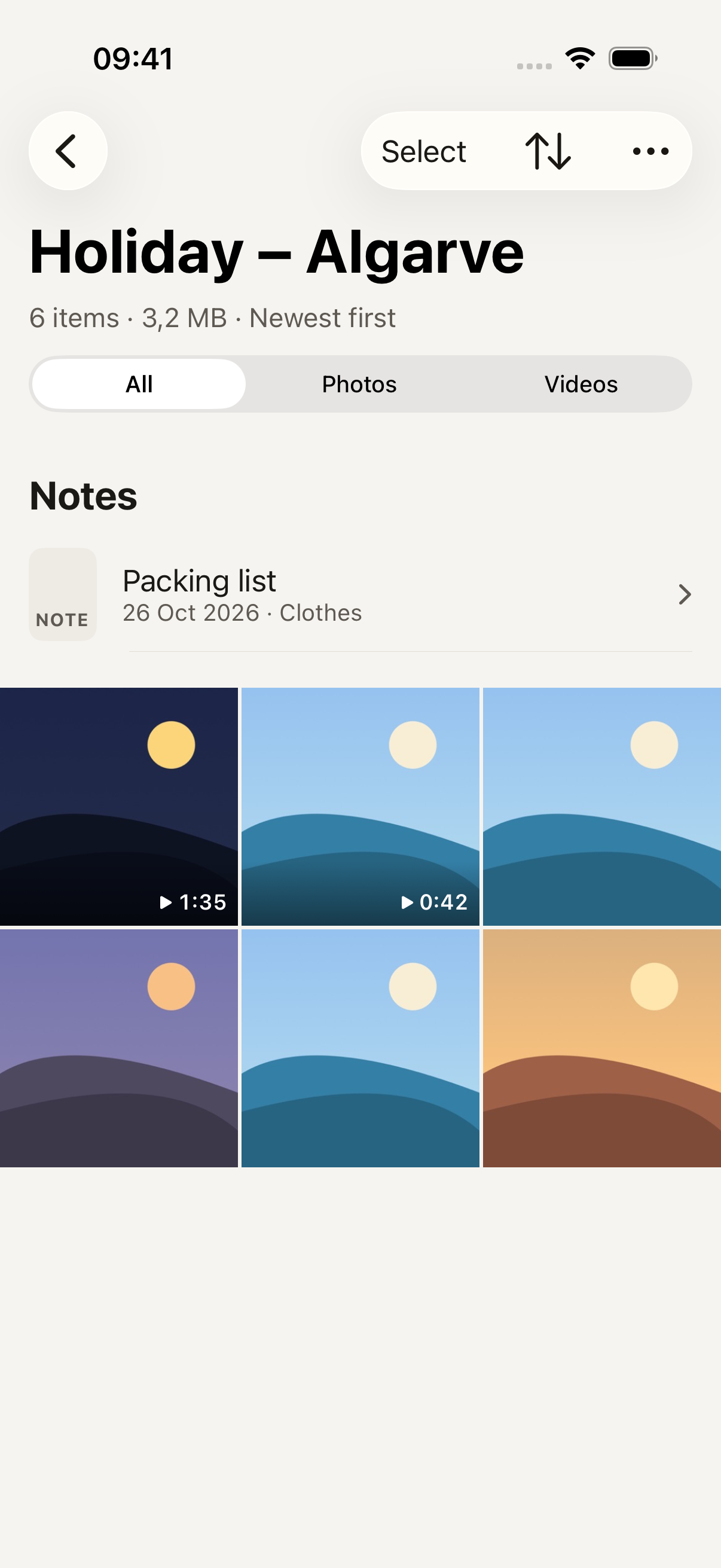
Remember that the free plan holds up to 100 items. Count what you plan to move before you start.
Unlocking Vely each time you open it
Every time you open Vely, you'll see the unlock screen: a pattern grid, with a Use recovery phrase option.
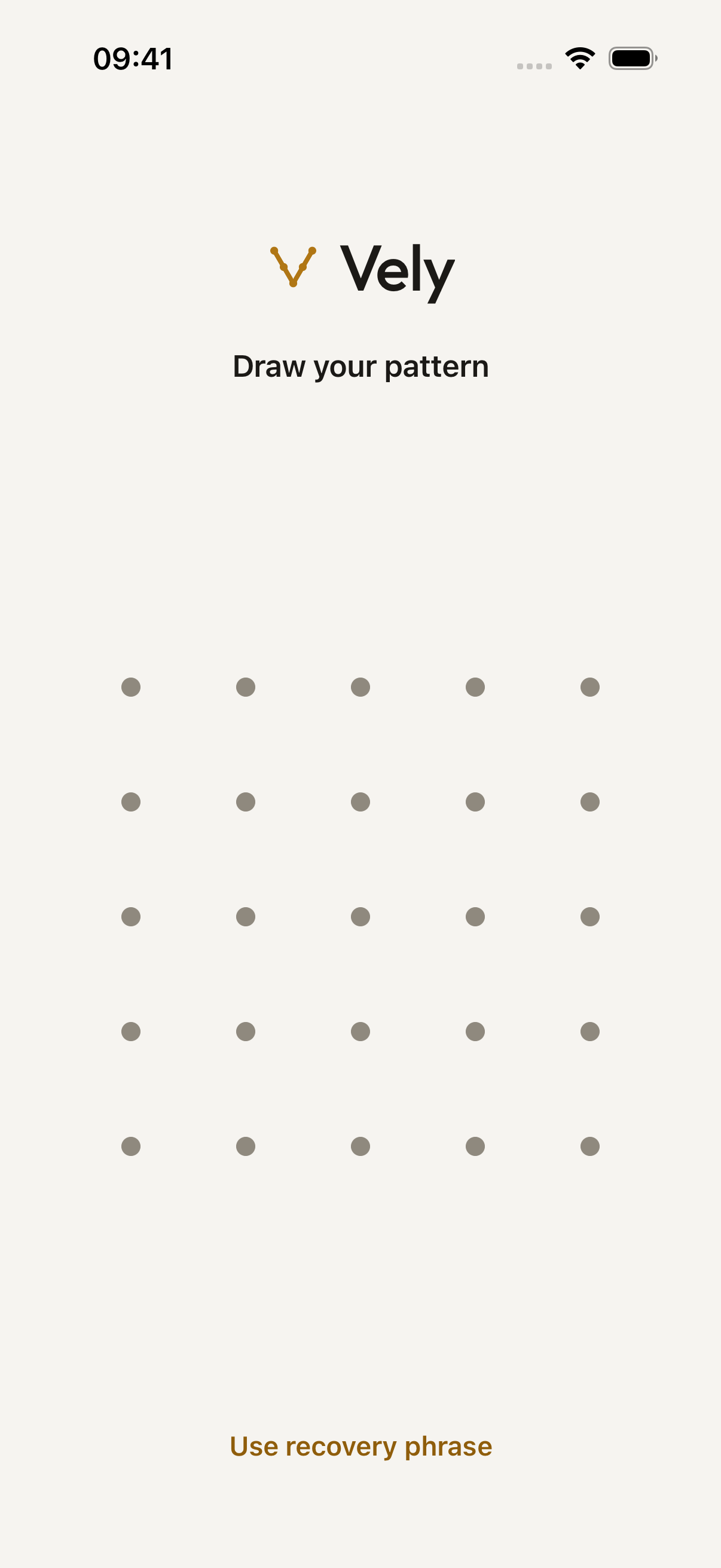
To unlock:
- Open Vely.
- Draw your pattern on the grid.
- Your vault opens, and your albums appear.
From there, tap any photo or video to view it.
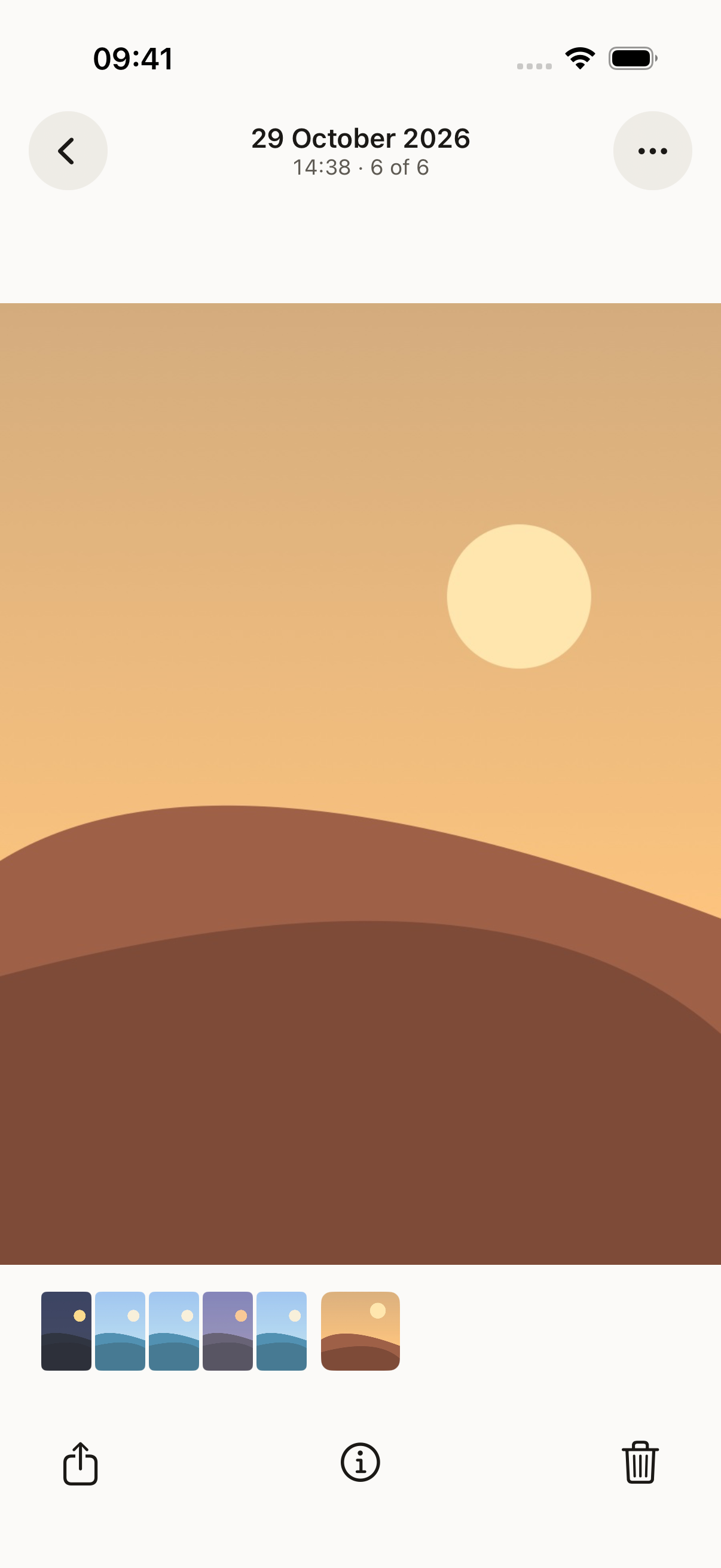
If you draw the wrong pattern several times, here's what happens:
Wrong patterns
After several wrong patterns, you have to wait before trying again, up to 15 minutes. This slows down someone guessing on your screen. It is a deterrent, not an encryption feature, and it doesn't stop someone who has copied your iPhone's storage.
If you're stuck behind the wait and genuinely can't remember the pattern, skip ahead to the recovery steps below instead of guessing.
Locking Vely again when you're done
You don't need to find a lock button. The approved copy describes what happens when you leave:
When you leave the app
Vely locks your vault as soon as you leave the app, hides its contents in the app switcher, and blurs the screen during screen recording or mirroring. A backup that's in progress can keep uploading already-encrypted data for a while.
Two habits are still worth building:
- Leave Vely before you hand your iPhone to anyone, even for a moment. Switching to another app or going to the Home Screen is enough to leave it.
- Lock your iPhone whenever you put it down. Leaving Vely and then leaving your phone unlocked on a table still gives someone access to everything else on it.
For a fuller checklist, read what to do before lending someone your iPhone.
If you forget your pattern: use your recovery phrase
Get out the phrase you wrote down in Step 2, then:
- Open Vely. On the unlock screen, tap Use recovery phrase.
- Type the words of your phrase in the order you wrote them. Vely suggests words as you type, which helps with spelling.
- If something's off, Vely tells you what to check. For example, you might see "Word N isn't a recovery phrase word. Check its spelling." or "These 12 words aren't a recovery phrase. Check each word, and their order."
- Once the phrase is accepted, follow the prompts to draw a new pattern. Use that new pattern from then on.
Here's the approved wording on what the phrase can and can't do:
Your recovery phrase
Your 12-word recovery phrase opens your vault if you forget your pattern, and you need it to restore your iCloud backup on a new iPhone. We show it once and never store it, so we can't show it to you again. Keep it somewhere safe and offline. Your recovery phrase restores access to encrypted data that still exists. It does not back up your files. If you lose both your pattern and your recovery phrase, we can't help you open your vault. We don't have your keys.
If a step doesn't match what you see on screen, contact support and describe where you got stuck.
What locking does and doesn't cover
The lock is one part of how Vely protects your vault. These are the approved limits, word for word:
What this doesn't protect against
- Someone who knows your pattern or watches you draw it. You can hide the pattern trail in Settings.
- Someone who has your iPhone while your vault is open.
- Malicious software, a jailbroken iPhone, or someone with full control of your unlocked iPhone.
- Someone who knows or gets past your iPhone's passcode and copies its storage. They could try to guess your pattern on their own computers, without the waits. A longer, less predictable pattern makes this much harder.
- Someone who has both your recovery phrase and access to your Apple Account. They could restore your backup.
- Files you export or share. Those copies leave the vault and are not encrypted by Vely. While a file is open in a preview or being shared, a temporary unencrypted copy exists on this iPhone. Vely deletes it when you close it, when the vault locks, and the next time the app opens.
- Screenshots or photos of your screen.
- Losing files that were never backed up.
Setting a lock and making a backup are two separate steps in Vely. If iCloud backup is off, Vely shows this in Settings and on the dashboard's storage card:
Not backed up. If you lose this iPhone or delete Vely, your files can't be recovered.
To set one up, read how to back up your private photos. If you're changing phones, see moving to a new iPhone with Vely.
Next steps
Before you rely on Vely for your private photos and videos, check that you have:
- Set a pattern you can remember and others can't easily copy
- Written down your recovery phrase and stored it somewhere private and offline
- Moved your photos and videos into the vault, keeping in mind that the free plan holds up to 100 items
- Got into the habit of leaving Vely and locking your iPhone before you put it down or hand it over
- Decided whether to turn on iCloud backup
Vely is Coming soon to the App Store.